Open a SQLite File Online
The hard part is usually not opening the file, it is finding it. This page shows where common apps keep their SQLite databases, how to copy them out safely, and how to open them in your browser.
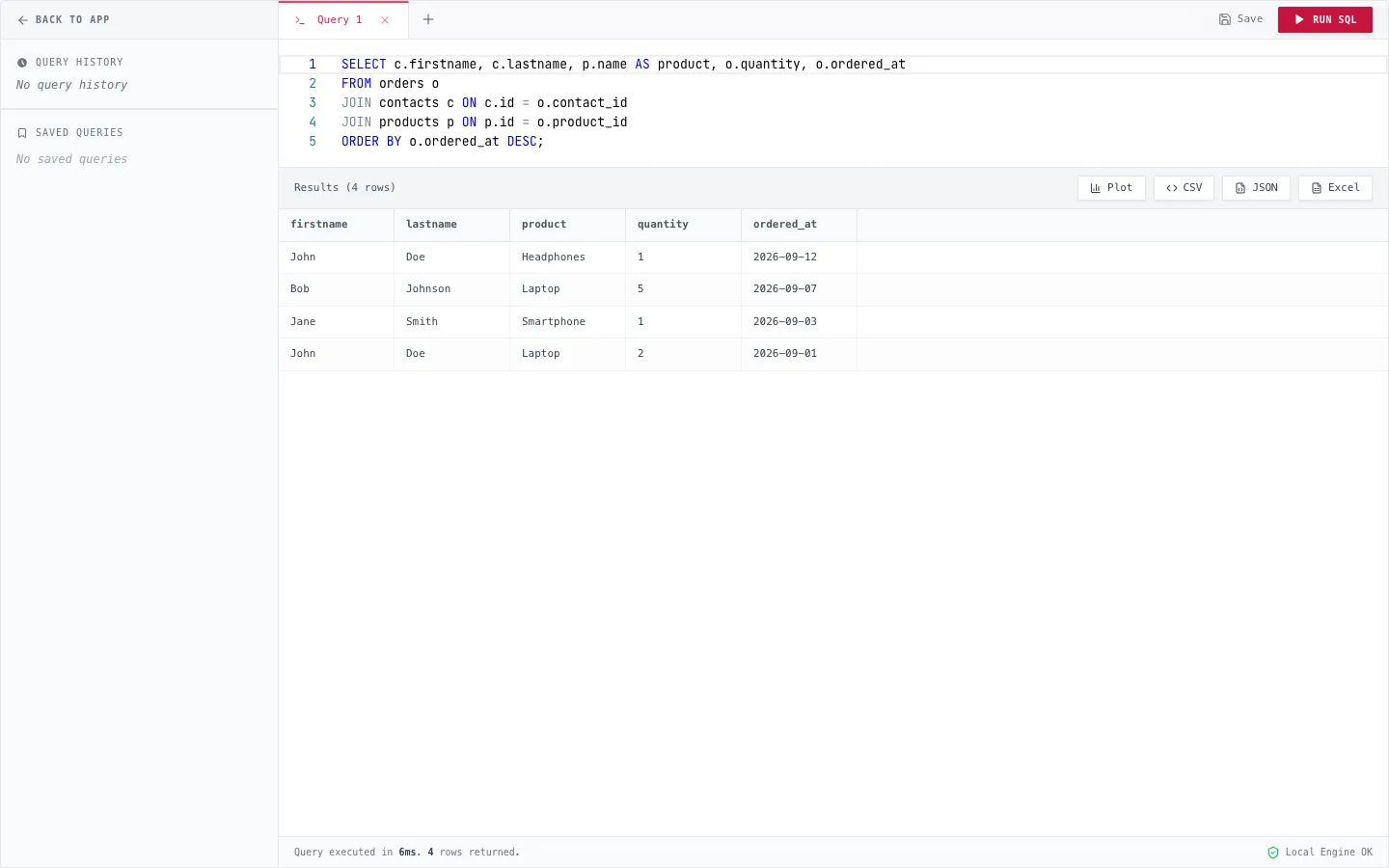
Open any SQLite file in three steps
- Go to the viewer and click Import Database (or Open Database File).
- Choose your .db, .sqlite or .sqlite3 file. It opens in your browser; nothing is uploaded.
- Pick a table in the sidebar, or open the SQL editor and run a query.
From an Android app
Android apps keep their databases in /data/data/<package>/databases/, which only the app can read. For an app you are developing (a debuggable build), copy the file out with adb:
adb exec-out run-as com.example.app cat databases/app.db > app.dbAlso copy app.db-wal if it exists, or close the app first so SQLite merges recent changes into the main file. In Android Studio you can use Device Explorer and "Save As" instead. Release builds of other apps need a rooted device.
From an iOS app
In the Simulator, run xcrun simctl get_app_container booted com.example.app data to print the app's data folder, then look in Library/ or Documents/ for the .sqlite file. Core Data stores usually end in .sqlite.
On a physical device with a development build, open Xcode → Window → Devices and Simulators, select the app, and choose Download Container. Right-click the downloaded package, choose Show Package Contents, and find the database inside AppData.
From Chrome, Edge or Firefox
Browsers store history, bookmarks and cookies in SQLite files. Close the browser first (the file is locked while it runs), then copy the file somewhere else before opening it.
- Chrome on macOS: ~/Library/Application Support/Google/Chrome/Default/History
- Chrome on Windows: %LOCALAPPDATA%\Google\Chrome\User Data\Default\History
- Edge on Windows: %LOCALAPPDATA%\Microsoft\Edge\User Data\Default\History
- Firefox: places.sqlite in your profile folder (about:profiles shows where that is).
Chrome and Edge's History file has no extension. Rename your copy to History.sqlite so the file picker lets you choose it.
If the file will not open
- "File is not a database": the file is encrypted (for example with SQLCipher, which WhatsApp and Signal use) or is not SQLite at all. Encrypted files need the key and a tool with SQLCipher support.
- "Database disk image is malformed": the copy is incomplete or corrupted. Copy it again with the app closed, or try the sqlite3 .recover command.
- Tables look empty or out of date: recent changes are still in the -wal file. Copy the .db-wal file too, or let the original app close the database cleanly first.
Frequently asked questions
Can I open a .db file online without uploading it?
Yes. SQLite Viewer reads the file in your browser and opens it with SQLite compiled to WebAssembly, so the contents stay on your device.
Is every .db file a SQLite database?
No. .db is a generic extension. Windows thumbnail caches (Thumbs.db), some game saves and other formats use it too. Our SQLite file viewer page shows how to check the file header.
Why do I need the -wal file?
In WAL mode, SQLite writes new changes to a separate -wal file and merges them into the main file later. If you copy only the .db file, recent changes may be missing.
Can I open WhatsApp or Signal databases?
Not directly. Those databases are encrypted, so you would need the encryption key and a tool that supports SQLCipher.
Related guides
- SQLite Viewer Online – Free online SQLite viewer that runs in your browser. Open .db, .sqlite and .sqlite3 files, browse tables, run SQL and export to CSV or Excel. Nothing is uploaded.
- SQLite File Viewer – View SQLite files in your browser: check whether a .db file is really SQLite, read its tables, schema, indexes and triggers, and export data to CSV or Excel. Free and private.
- SQLite Viewer user guide – every feature, step by step.